

What just rolled out in Performance Max
Until now, excluding the Google Display Network (GDN) or Search Partners from a Performance Max campaign required ugly workarounds. Media buyers had to maintain 40,000-line placement exclusion lists, block all mobile app categories via Google Ads Editor, or strip out text and image assets to force a feed-only Shopping setup. Even then, Search Partners remained glued to your core Search traffic.
That changes with the new Channel prioritization panel.
Instead of treating all inventory as a single blended pool, Google Ads now exposes priority tiers and percentage budget ceilings. You can apply these rules globally in Account settings or override them per campaign using Customize for this campaign.
Senior Media Execution: See how our Google Ads & PMax Scaling Crew combines channel caps with Server-Side Measurement Protocol on Olivia Garden (587% ROAS) and offline GCLID call pipelines on Boobon (132% net ROAS).
Inside the live settings panel: Three inventory buckets
When you open a Performance Max campaign where this beta is active, you will find a new section labeled Channel prioritization with a blue NEW badge. Below is the exact configuration window from one of our live production accounts:
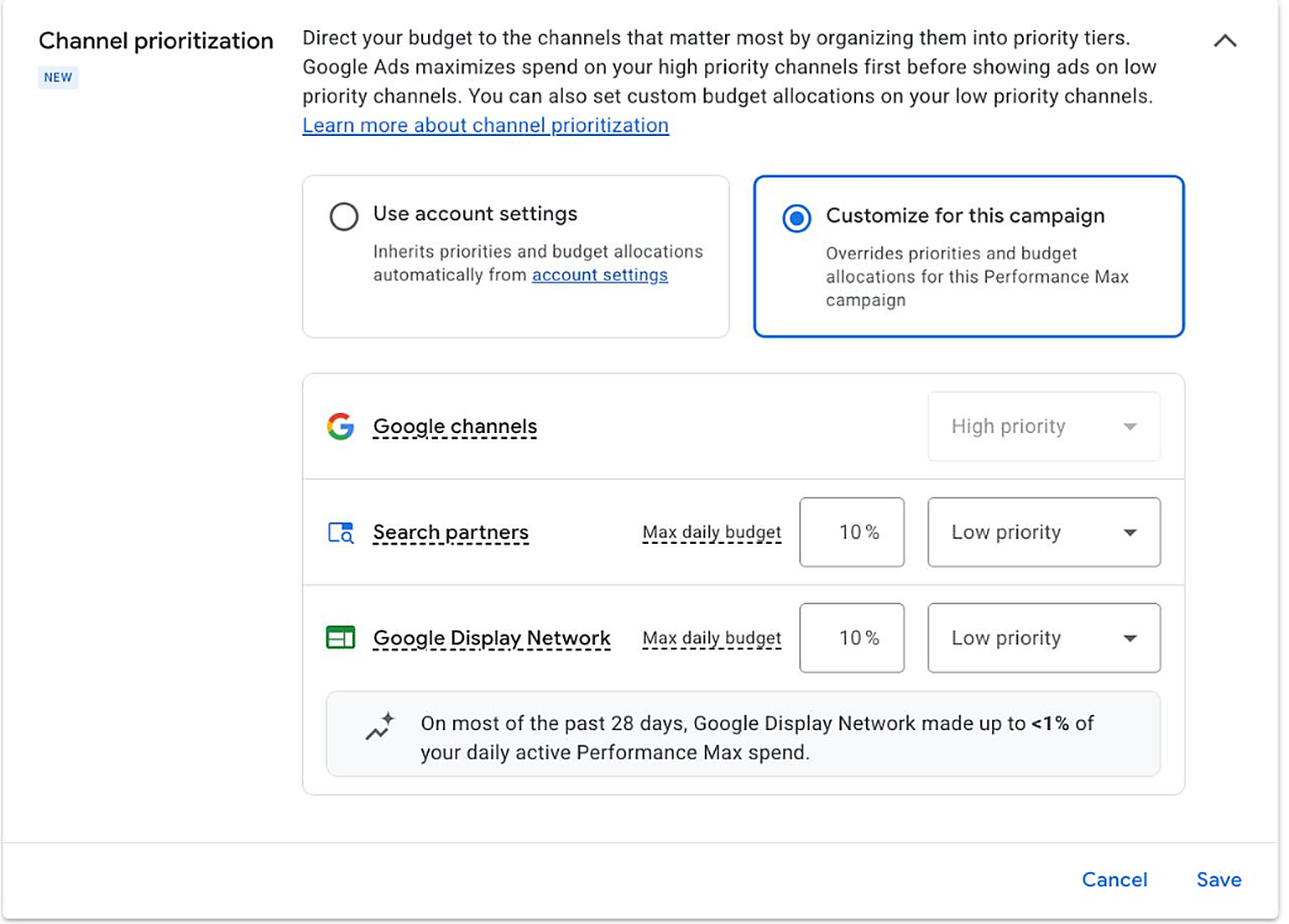
Look closely at how Google structures the three rows inside this panel.
First is Google channels. Notice that its dropdown is greyed out and locked at High priority. Google bundles Search, Shopping, YouTube, Discover, Gmail, and Maps into this single top tier. You cannot demote it, and you cannot split YouTube from Search inside this specific widget.
Second is Search partners (third-party search engines, directory sites, and browser parked domains). When you switch its dropdown from High priority to Low priority, a new input box appears right next to it: Max daily budget expressed as a percentage.
Third is the Google Display Network (millions of external web publisher banners, AdSense sites, and mobile games). Just like Search Partners, switching it to Low priority unlocks a dedicated Max daily budget percentage cap, along with a 28-day diagnostic bar at the bottom showing your historical GDN spend share.
The Smart Bidding trap: Why "Low priority" alone does nothing
Most advertisers who spot this feature flip Search Partners and GDN to Low priority, leave the percentage box blank, hit Save, and assume they are protected.
Here is the catch. It does not work that way if you use Target ROAS or Target CPA.
In Google's auction logic, priority tiers only dictate spending order when a campaign is strictly limited by budget. If your campaign has a €200/day budget, runs on Target ROAS 450%, and only spends €140/day on core Google channels because search volume is finite, the algorithm considers high-priority demand "satisfied." It then immediately spills your remaining €60/day into Low priority channels whenever its model predicts a cheap conversion.
Field setups on our projects: Olivia Garden & Boobon
We rolled out Channel prioritization across two very different business models in our portfolio as soon as the beta appeared in their accounts: Olivia Garden (high-SKU professional hairbrush e-commerce) and Boobon (e-commerce with heavy phone order volume tracked via an offline CRM pipeline).
Both accounts needed different caps based on how their customers actually buy.
High-SKU E-Commerce Catalog
Offline CRM & Call Pipeline
On Olivia Garden, where we track checkout revenue via Server-Side Measurement Protocol at a verified 587% ROAS, Google's 28-day diagnostic showed that GDN naturally consumed less than 1% of daily spend on normal days. Why put a 5% to 10% cap on it anyway? Because during Black Friday or seasonal haircare promotions, when you raise daily budgets by 40% or lower Target ROAS to capture volume, PMax suddenly dumps excess budget into GDN placements before Shopping auctions can absorb it. A hard 10% ceiling acts as a circuit breaker.
On Boobon, the economics are different. A large share of buyers call by phone before paying, and we feed paid CRM orders back into Google Ads via an automated GCLID pipeline. In accounts with phone numbers or lead forms, Search Partners and GDN are notorious for click-farm traffic and accidental mobile dial clicks. Setting Search Partners to 0% and GDN to 0%–2% keeps 98%+ of the budget inside high-intent Google Search and Shopping grids.
The 0% native opt-out rule and account inheritance
The most powerful hidden feature inside Channel prioritization is that the Max daily budget input accepts 0%.
When you set a Low priority channel to 0%, Google Ads treats it as a hard opt-out. You no longer need to file support tickets with Google reps or maintain massive placement exclusion scripts just to stop PMax from showing banners on third-party websites.
Step 1: Set a defensive baseline in Account settings
Navigate to Admin → Account settings → Channel prioritization. Set both Search partners and Google Display Network to Low priority with a 5% or 10% Max daily budget cap. Every PMax campaign set to "Use account settings" immediately inherits this safety net.
Step 2: Override to 0% on Shopping & Cold Acquisition campaigns
In e-commerce Shopping PMax campaigns where you want strict control over product grid impressions, select Customize for this campaign and enter 0% on Search partners (and 0% on GDN if you run dedicated remarketing elsewhere). Save and monitor impression shifts over the next 7 days.
Step 3: Use a 5% to 15% sandbox to test Display reach safely
Channel prioritization also works in reverse when you want to test upper-funnel display media or dynamic banner remarketing inside PMax. Instead of risking an uncapped campaign where GDN might swallow 40% of your budget overnight, set Google Display Network to Low priority with a strict 10% or 15% ceiling as a controlled testing sandbox.
How to manage YouTube inside the locked Google channels bundle
Cutting off GDN and Search Partners solves half the problem. What if Performance Max takes the budget you saved from GDN and dumps it into low-converting YouTube Shorts or Discover feeds inside the locked Google channels bucket?
Because YouTube does not appear as a separate row in Channel prioritization, you have to manage video spend separately through campaign settings and asset group architecture:
- Check your campaign-level
Asset optimizationsettings and turn off automated Video enhancements so Google AI does not automatically recrop your assets into vertical YouTube Shorts placements when you only want Shopping traffic. - Watch out for auto-generated slideshow videos. Whenever an Asset Group contains text headlines and static images without an uploaded video, Google automatically generates template slideshow videos and serves them on YouTube. Because Google removed the native toggle to block auto-generated videos inside standard asset groups, the only way to guarantee zero YouTube spend in a Shopping PMax campaign is to run a Feed-Only asset group (Merchant Center feed attached, with zero headlines, images, or videos uploaded).
- Segment your product catalog by actual gross profit (`custom_label_0`) using our POAS Margin Bidding architecture so Google only funds YouTube or Discover video reach on products carrying 45%+ gross margin.
- Upload negative brand keyword lists at the campaign level so PMax cannot pad its ROAS numbers by bidding on people typing your exact brand name into Google Search.
Questions we get from in-house teams
Can you completely turn off Search Partners and Google Display Network in Performance Max?
Yes. Inside the Channel prioritization panel, switch Search partners and Google Display Network from High priority to Low priority, then type 0% in the Max daily budget box. Setting 0% blocks spend on those networks without disrupting your main Google channels.
Why does setting Google Display Network to Low priority still allow spend if I leave the budget cap empty?
When a Performance Max campaign uses Target ROAS or Target CPA and is not strictly capped by its daily budget, Google AI continues bidding on any auction that meets your target threshold regardless of priority tier. You must enter a numerical percentage cap (such as 0% to 10%) in the Max daily budget field to enforce a hard ceiling.
How do I stop YouTube and auto-generated videos if YouTube is locked inside Google channels?
Google locks Search, Shopping, YouTube, Discover, Gmail, and Maps inside a single top-level row called Google channels. If an asset group has headlines and images but no video, Google automatically creates slideshow videos and serves them on YouTube. To restrict YouTube spend, turn off Video enhancements under Asset optimization in campaign settings, or use a Feed-Only asset group (Merchant Center feed only, zero text or image assets) so Google cannot generate auto-videos.
Does changing Channel prioritization reset Smart Bidding learning?
In our tests across Olivia Garden and Boobon, capping GDN and Search Partners at 0% to 10% did not trigger a learning reset because those channels accounted for a small fraction of historical conversions. If an unoptimized account previously spent 35%+ of its budget on GDN, step the cap down gradually (from 20% to 10%, then 5%) over 10 days.